
How to Send Secure Messages to Your Clinician
Step 1: Log Into the Client Portal
Access the SimplePractice Client Portal using the link provided in your intake or appointment emails. Log in with your email address and password.
If you don’t remember your password, select Forgot Password to reset it.
Step 2: Navigate to Secure Messaging
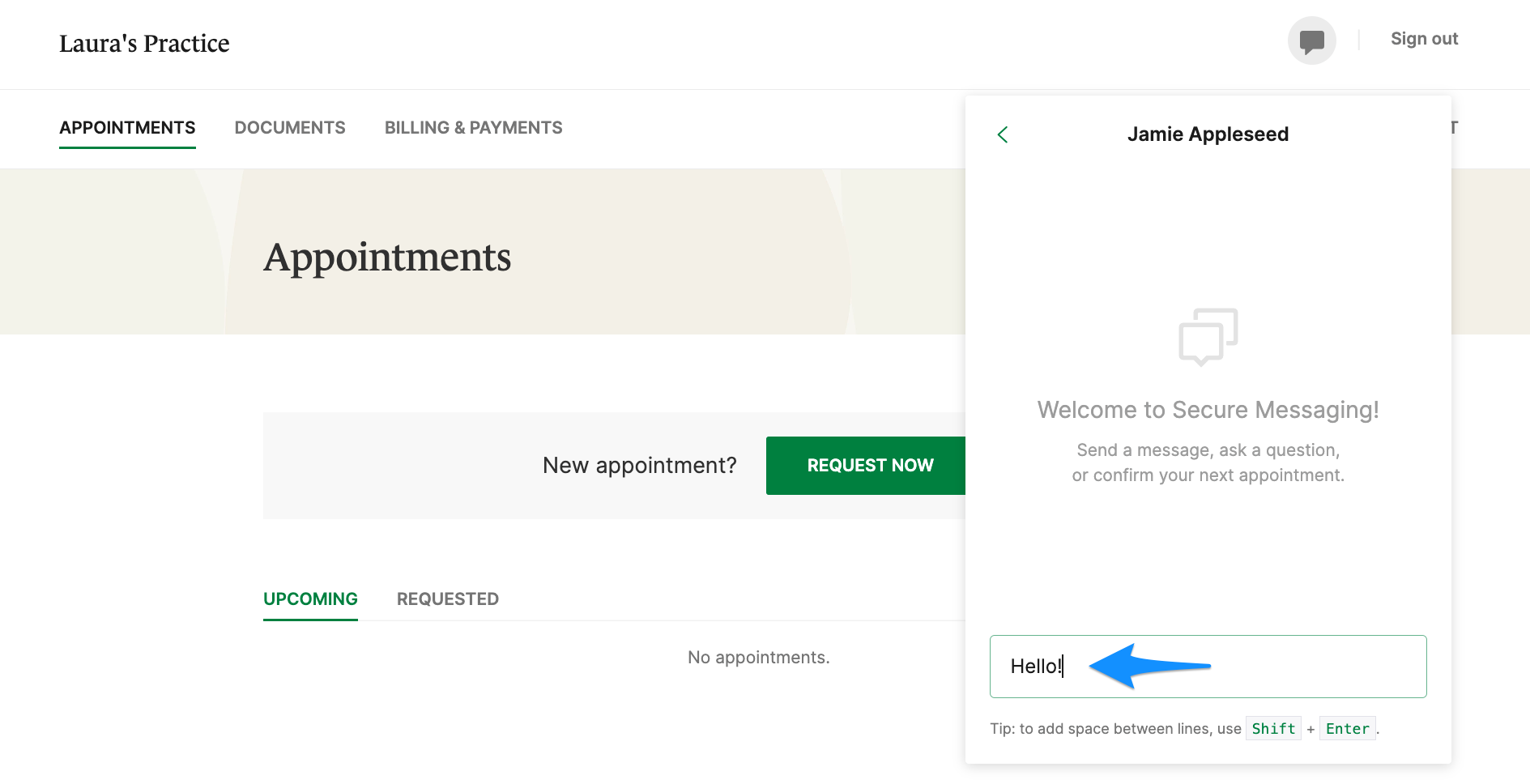
Once logged in, select Messages from the main menu or dashboard. This section is dedicated to secure, encrypted communication with your care team.
Step 3: Start a New Message
Click New Message and choose your assigned clinician from the list of available recipients.
Enter a clear subject line so your clinician understands the purpose of your message.
Step 4: Write and Send Your Message
Type your message in the text box. When ready, click Send.
Your message is delivered securely within the portal—no regular email involved.
Step 5: Check for Replies
Clinician responses will appear in the Messages section of the portal.
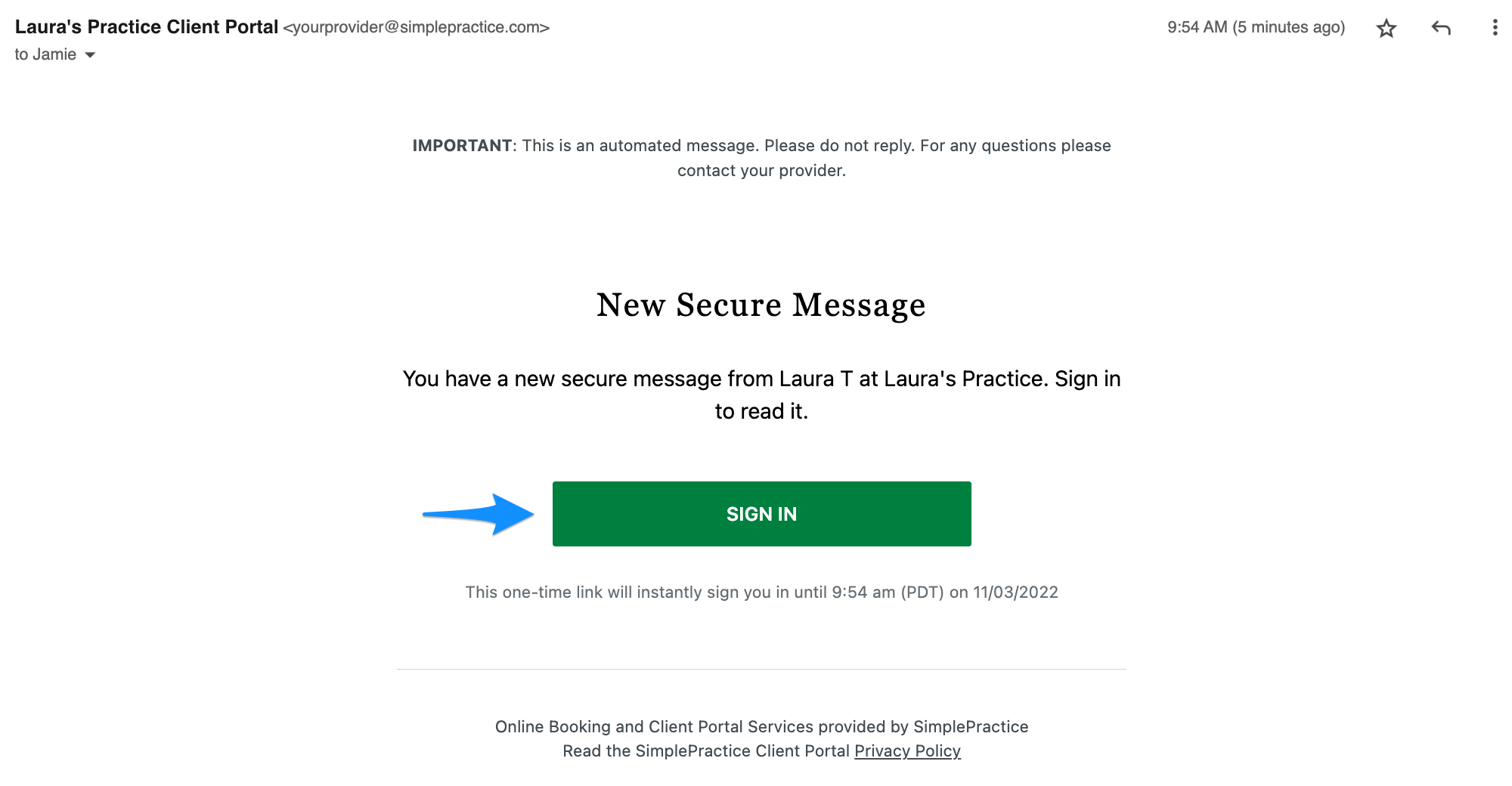
You may also receive an email notification letting you know a new secure message is available (the content itself will not appear in the email).
Helpful Reminders
- Use secure messaging for scheduling questions, non-urgent updates, or treatment clarifications.
- Do not use secure messaging for emergencies. Call 911 or your local emergency number.
- If you're having trouble logging in, contact the intake team for help accessing the portal.