
A Guide to our Secure Messaging Chat
Introducing SecureMessage App
Do you need to re-schedule your appointment or ask a question. Secure Messaging lets you send and receive message your clinician directly. Connect with your clinician from anywhere using any device, as long as you have internet connection
Sending Secure Messages
You will first need to log into your client portal.
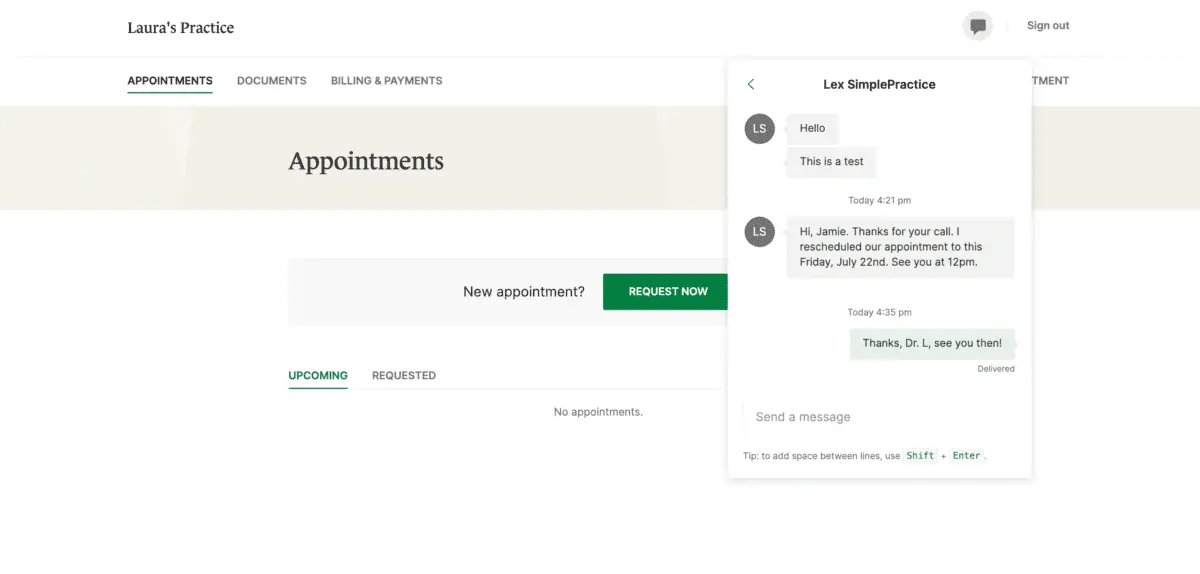
Once you log into the portal, just click on the Secure Message icon to view your message. The orange dot indicates a new message is waiting.
Click on the messaging icon to start sending a message to your therapist.
Once you log into the portal, just click on the Secure Message icon to view your message. The orange dot indicates a new message is waiting.
Click on the messaging icon to start sending a message to your therapist.

Start typing your message in the box that says ‘Send a message’, then hit enter (or return) on your keyboard when you’re ready.
Receiving and Viewing Secure Messages
MESSAGE NOTIFICATIONS
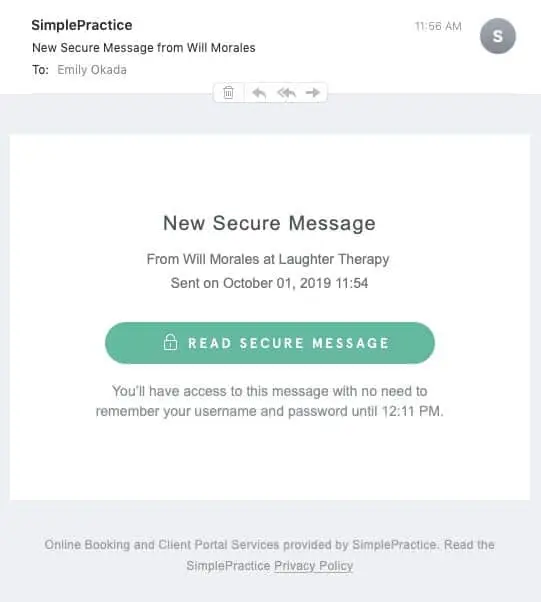
When your clinician sends you a secure message, you’ll receive an email that looks like this:
1. Click on the Read Secure Message button to access your message. Your link will be active for 15 minutes from the time the email is sent. During this time, you can view your message directly after you click the link.
2. Clicking the link will open the messaging widget in your default browser. You can then send messages directly from there. This works the same way whether you’re on your computer or your mobile device.
1. Click on the Read Secure Message button to access your message. Your link will be active for 15 minutes from the time the email is sent. During this time, you can view your message directly after you click the link.
2. Clicking the link will open the messaging widget in your default browser. You can then send messages directly from there. This works the same way whether you’re on your computer or your mobile device.
Additional Information
Client Support

Need to Cancel
Need to reschedule or cancel an appointment? We value your time and strive to ensure a seamless experience for all our clients.

Client Mobile Application
Experience the convenience of managing appointments, messaging clinicians, and viewing invoices all in one place with our user-friendly practice mobile application
Billing and Payment
Effortlessly view and manage your invoices, statements, and bill payments through our secure and intuitive client portal.