
Securely Message Your Therapist
Need to ask a quick question, share an update, or connect with your therapist between appointments? Secure messaging in your Client Portal gives you a private way to stay connected.
Your private connection to your therapist
JL Family Services uses the SimplePractice Client Portal for secure communication between you and your therapist. Secure messaging allows you to send and receive private messages inside the portal instead of sharing personal clinical information through regular email or text.
You can access your messages from a computer, phone, or tablet whenever secure messaging is enabled for your account.

How to send a secure message
Once you are inside your Client Portal, sending a message only takes a few steps.
Sign in to your Client Portal
Open the JL Family Services Client Portal using the secure portal link provided in your welcome or appointment emails. Sign in using the email address connected to your account.
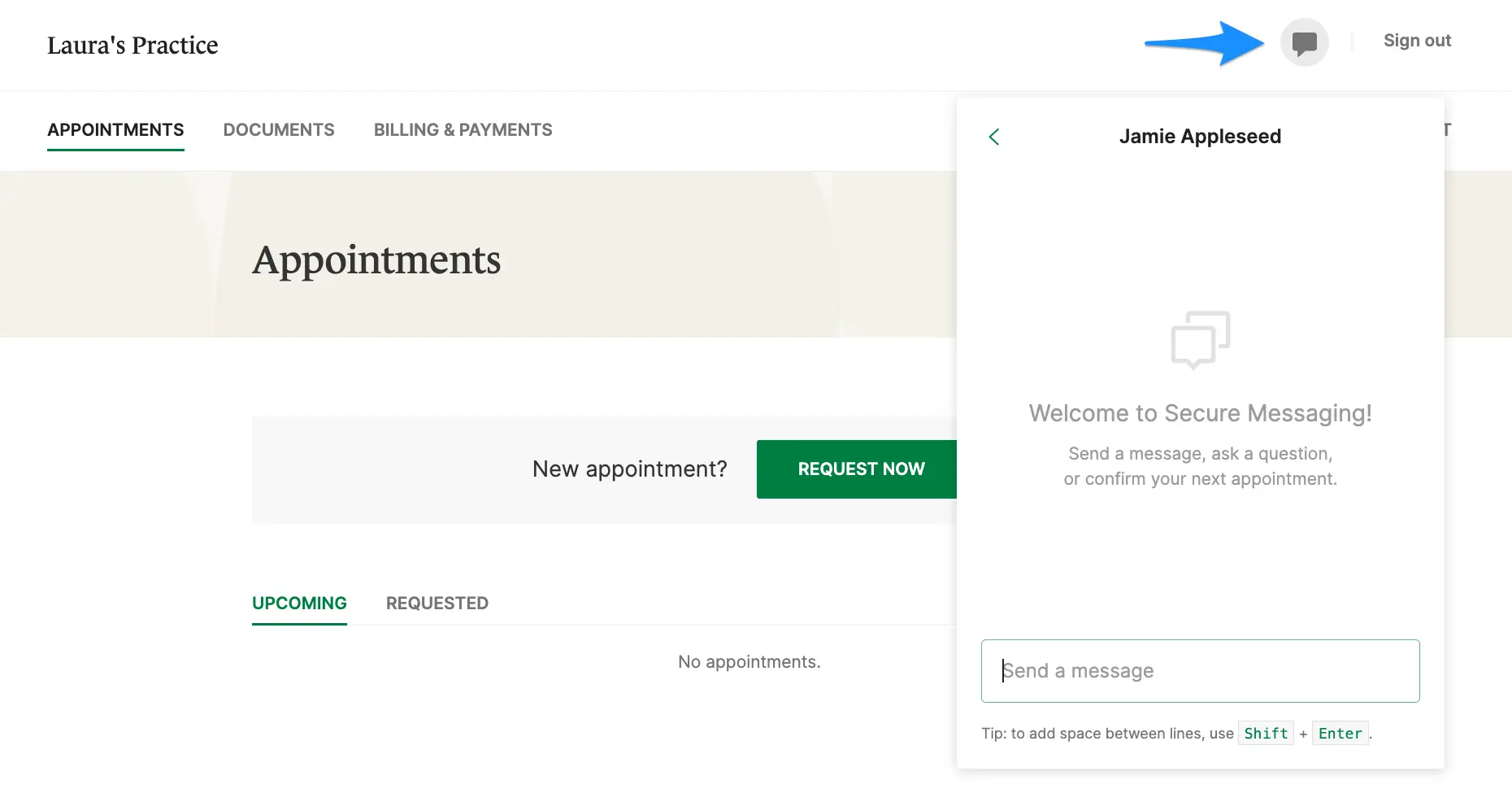
Open Messages
Look for the chat bubble icon in the upper-right area of the Client Portal. Select the icon to open your secure message conversation with your therapist.
- A red dot on the chat icon means you have an unread message.
- If no chat icon appears, secure messaging may not be enabled for your account.
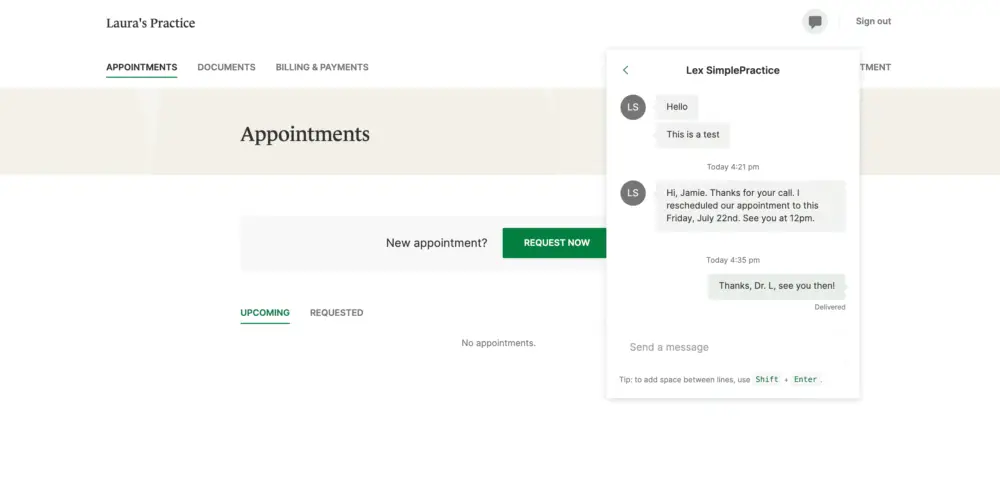
Type and send your message
Enter your message in the text box, then press Enter or Return to send it. Your therapist will be notified that a new secure message is waiting.
When your therapist replies
When a new secure message is sent to you, SimplePractice sends an email notification. Use the sign-in link in that notice to return to your Client Portal and read the message.
Inside the portal, unread messages are marked by a red dot on the chat bubble icon. Open the conversation, type your reply, and press Enter or Return.

When secure messaging is helpful
Secure messaging works best for brief communication that supports your ongoing care. Your therapist may have their own boundaries around response times and what can be handled between appointments.
Quick questions
Ask a brief question about something you discussed in session or clarify a next step your therapist recommended.
Scheduling
Connect directly with your therapist about scheduling, rescheduling, or finding a time that works for your next session.
Brief updates
Share a short update that may be helpful for your therapist to know before your next appointment.
Secure messaging is not an emergency service
Your therapist may not see a portal message immediately. If you are experiencing an emergency, are in immediate danger, or need urgent crisis support, call 911, go to the nearest emergency department, or call/text 988 for the Suicide & Crisis Lifeline.
Secure messaging FAQs
Why don't I see the chat bubble?
The chat bubble is only visible when secure messaging is enabled for the practice and your portal access. If it is missing, contact JL Family Services for assistance.
Will I know when my therapist messages me?
Yes. SimplePractice sends an email notification when you receive a new secure message. If you use the Client Portal mobile app, you may also be able to enable push notifications.
Can I send a long message?
Each secure message has a 1,000-character maximum. Longer or more complex topics are generally better discussed during a therapy appointment.
Is secure messaging the same as regular email?
No. Your message is viewed inside the secure Client Portal. Email notifications alert you that a message is waiting, but the clinical message itself remains in the portal.
Need more help using secure messaging?
SimplePractice has a step-by-step Client Help Center guide with additional information about sending and receiving secure messages.
View the SimplePractice Secure Messaging GuideInstructions are based on SimplePractice Client Help Center guidance for secure messaging.
